

Export selected orders
Select orders on the Shopify Orders page and choose Exportify from the actions menu to export just those orders, or open a single order and choose Exportify under More actions to export only that order; Shopify passes at most 50 at a time, so use a date range in Exportify for larger batches.
When you want a few specific orders rather than a date range, select them on the Shopify Orders page and send them to Exportify.
How to export selected orders from the Shopify Orders page
Section titled “How to export selected orders from the Shopify Orders page”-
Find the orders in Shopify. On the Orders page, use Shopify’s tabs, search and filters to narrow the list.
-
Select the orders. Tick each order, or tick the checkbox at the top of the list to select the whole page.
-
Send them to Exportify. Open the actions menu for the selection and choose Exportify. Exportify opens with those orders already chosen.
-
Pick a template and export. Choose the template and click Export. The file appears under Recent exports as usual.
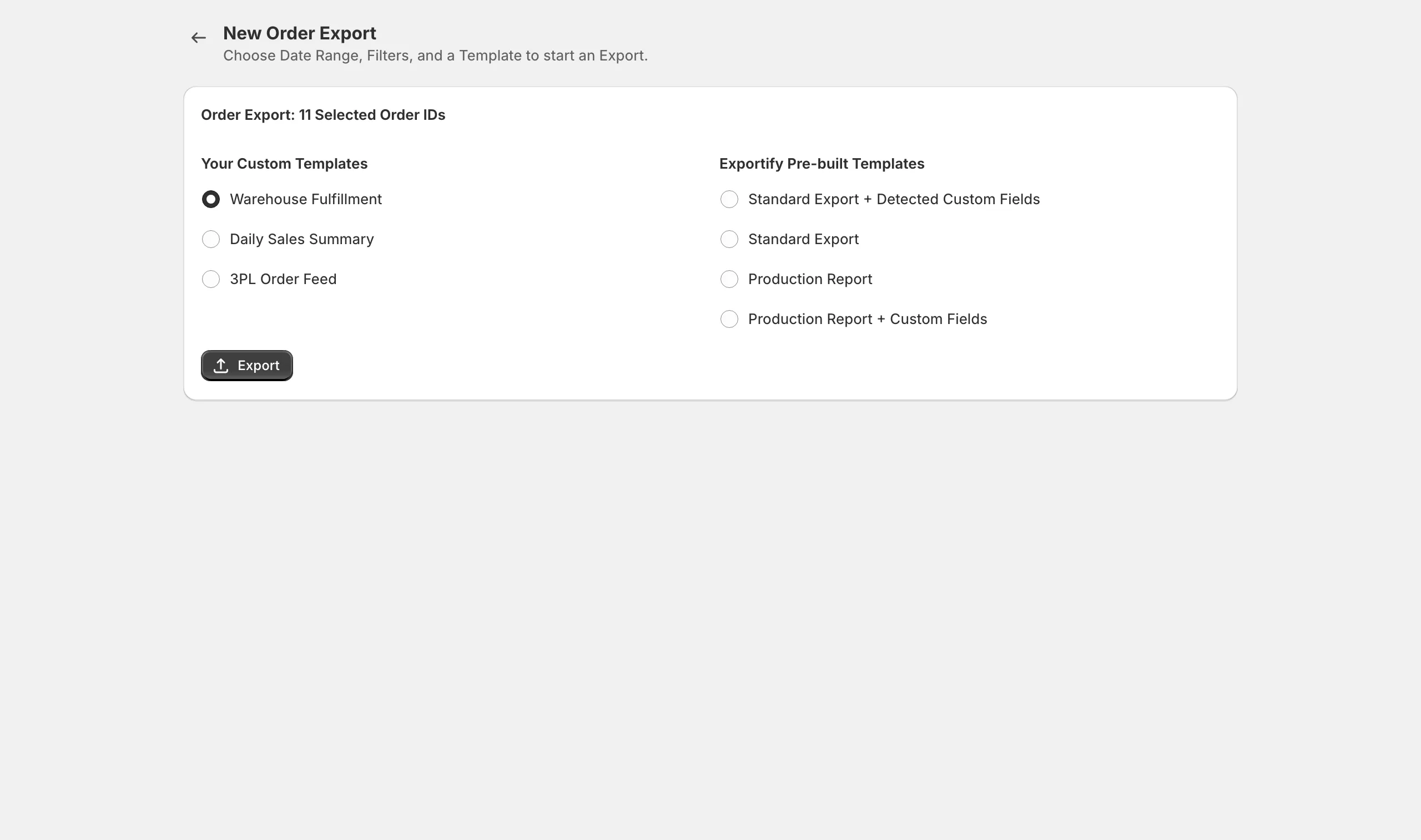
Exportify opened from the Shopify Orders page with the selected orders ready to export
How to export one order from its own page
Section titled “How to export one order from its own page”To get a file for a single order, start from the order itself. Each export then contains exactly that order, which is useful for one file per order, for example sample files for a system that will import them.
-
Open the order in your Shopify admin.
-
Choose Exportify under More actions. More actions is at the top of the order page. Exportify opens with that order already chosen.
-
Pick a template and export. Choose the template and click Export. The file appears under Recent exports as usual. Repeat from the next order for another file.
For files that should arrive one per order without anyone exporting them, see Automatic per-order exports.
Next steps
Section titled “Next steps”- Run your first export for date ranges and filters