

Run your first export
To export a batch of Shopify orders with Exportify, set a date range, optionally filter by status or tags, choose a template, click Export, and download the file from Recent exports.
An on-demand export takes a date range, optional filters and a template, and gives you a file to download. This is the everyday way to get a batch of orders out of Shopify.
Before you start
Section titled “Before you start”You need Exportify installed and open in your Shopify admin. Any template will do for a first run; the pre-built Standard Export is a good choice.
How to export a batch of orders by date range
Section titled “How to export a batch of orders by date range”-
Open a new export. From the Exportify home page click Run an export (on a new install the button says Run your first export), or open Exportify from the Apps menu in your Shopify admin.
-
Set the date range. The range is by order date, in your store’s time zone: from 00:00 on the first date up to, but not including, 00:00 on the second date. So “After 00:00 on 1 August” and “Before 00:00 on 2 August” exports orders placed on 1 August.
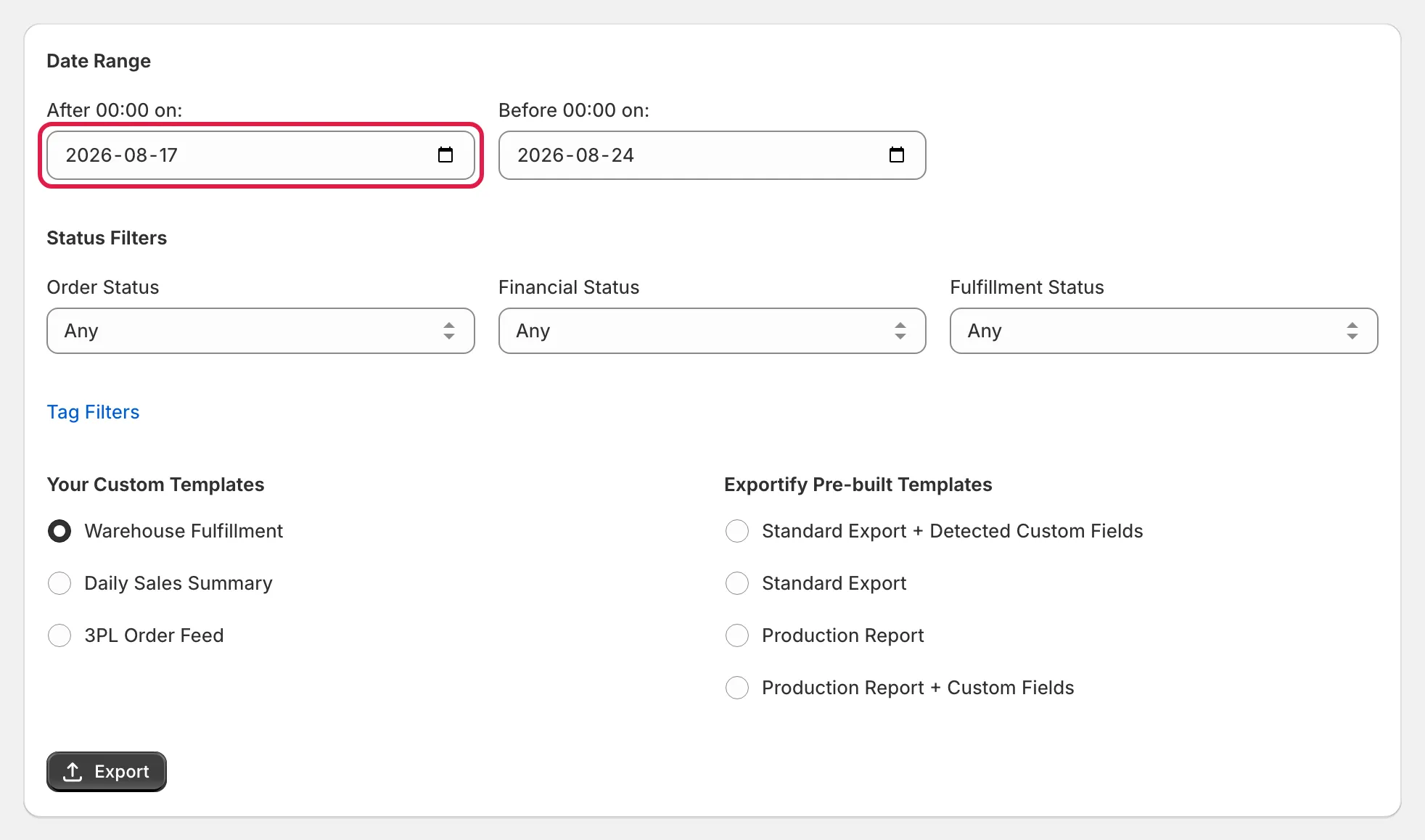
The New Order Export form with the date range fields highlighted -
Filter by status if you need to. Order status, financial status and fulfilment status each default to Any. Set them only when you want a subset, for example paid and unfulfilled orders. Open Tag Filters to include only orders with certain tags, or to exclude tagged orders. As you type, Exportify suggests your store’s most used and most recent order tags; any other tag can be typed in full. See Export only orders with a certain tag.
-
Choose the template. Pick one of your custom templates or an Exportify pre-built template. The template decides the columns and the file format.
-
Click Export. The export starts and you land on Recent exports, where it moves from queued to processing to ready. Small exports take seconds; very large ones take longer.
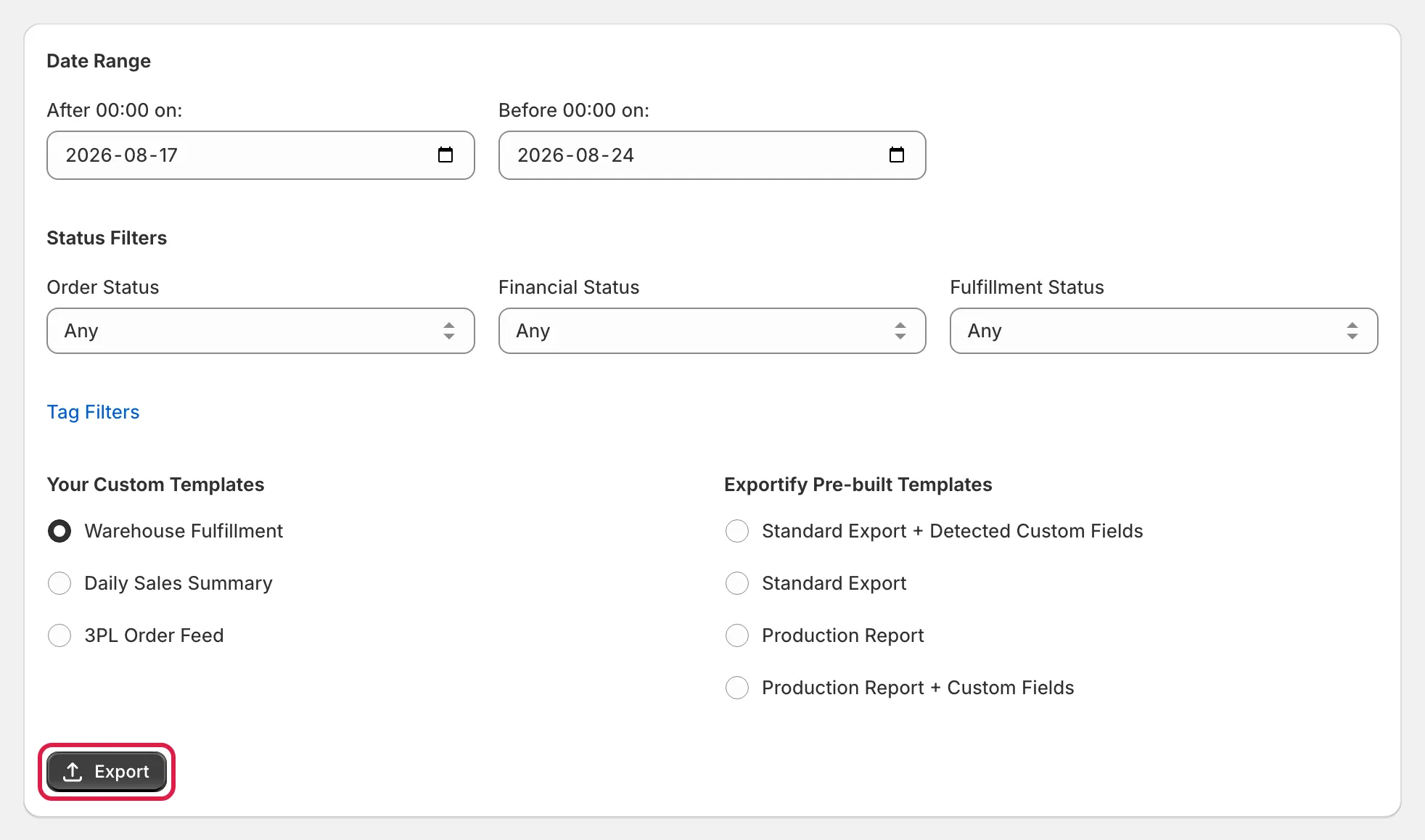
The New Order Export form with the Export button highlighted -
Download the file. When the status shows ready, use the download link. The Recent exports page shows how long completed exports stay available.
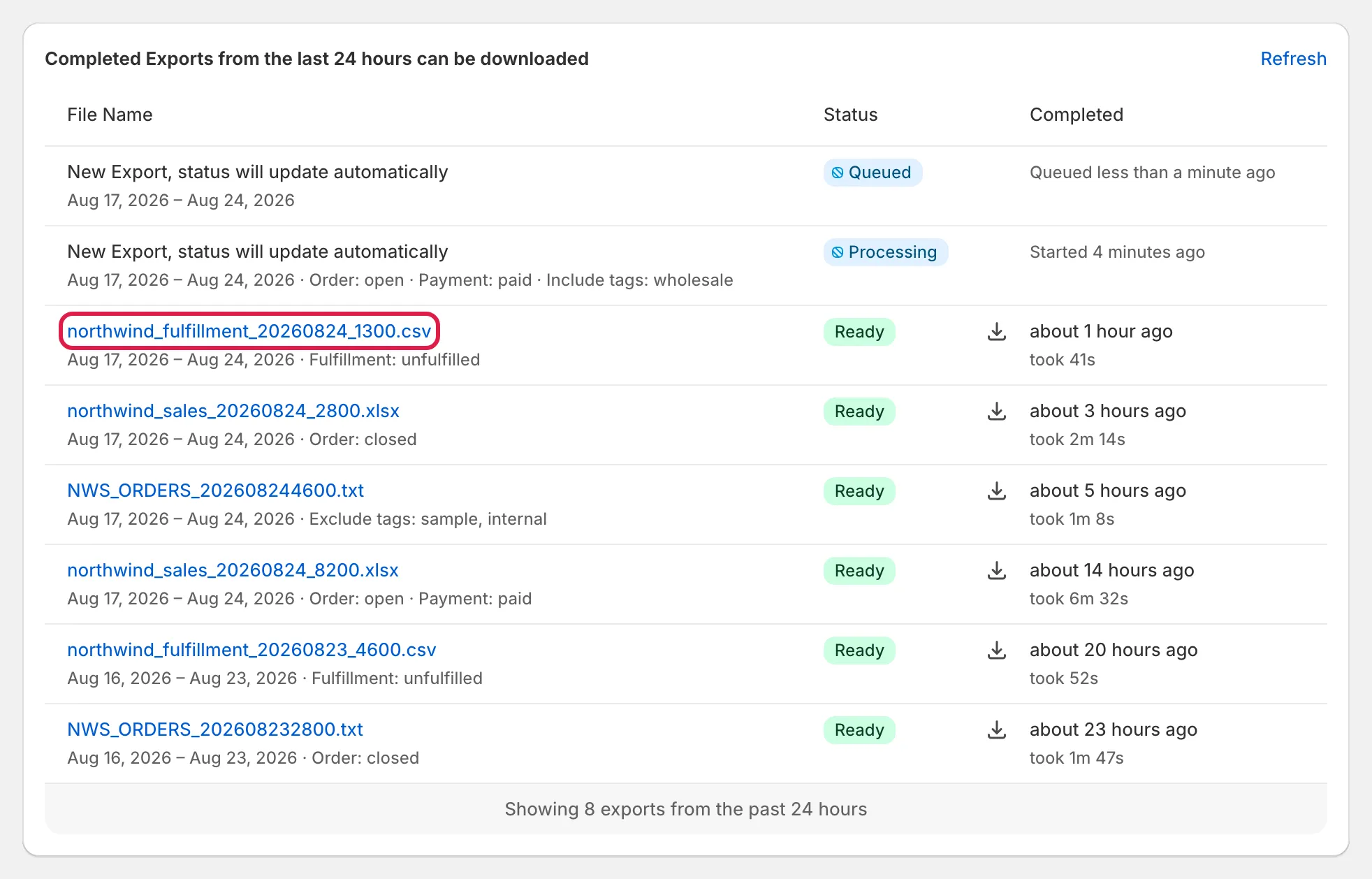
Recent exports with the download link highlighted
What to do if an export fails
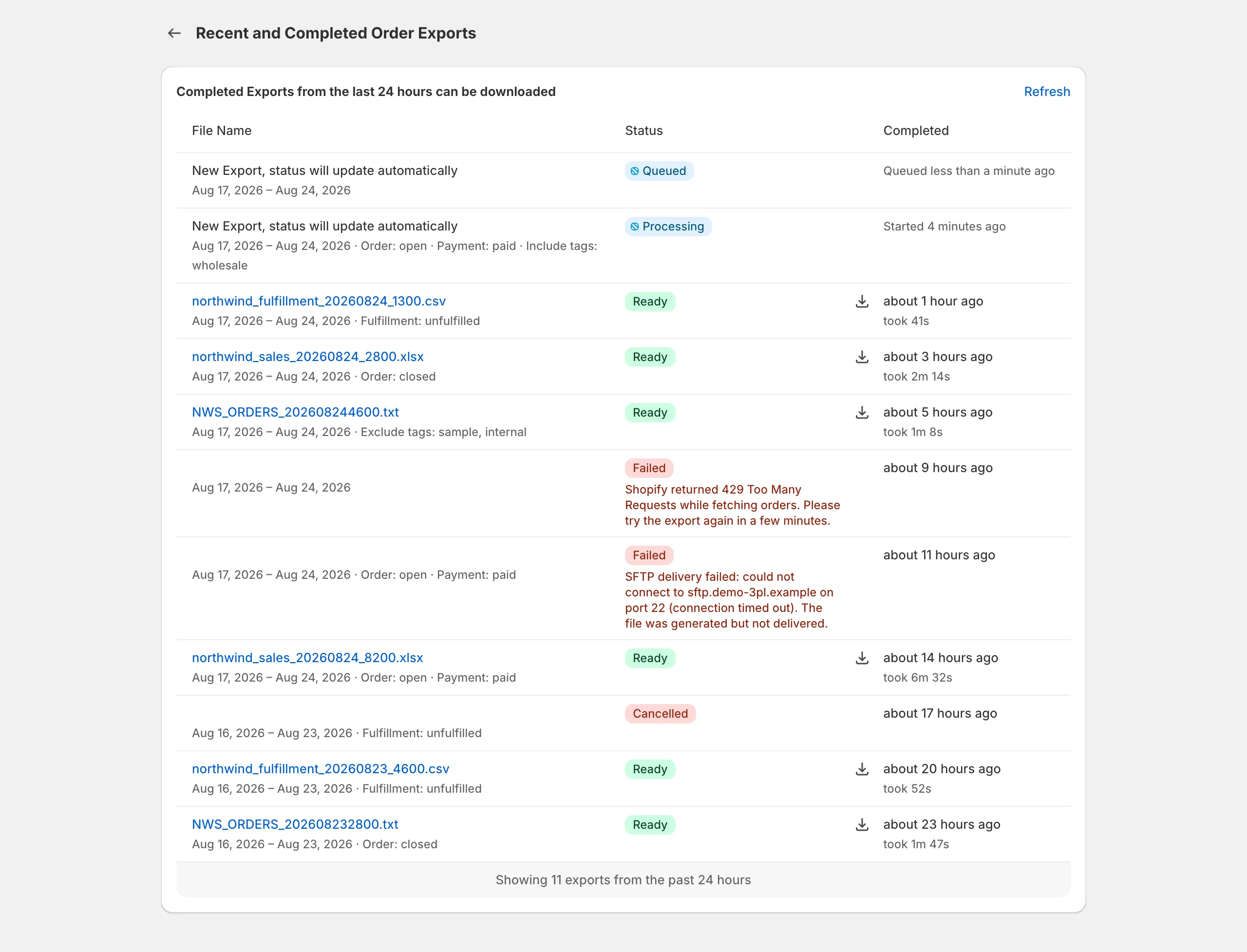
Section titled “What to do if an export fails”If something goes wrong, the export shows a failed status with a short message. Most failures are temporary (Shopify’s API was busy) and running the export again works. If it fails twice, contact support with the export’s date and template name.
Next steps
Section titled “Next steps”- Export selected orders for a handful of specific orders
- Export only orders with a certain tag for wholesale, pre-order or other tagged orders
- Create a custom template to get exactly the columns you want