

Use more than one template
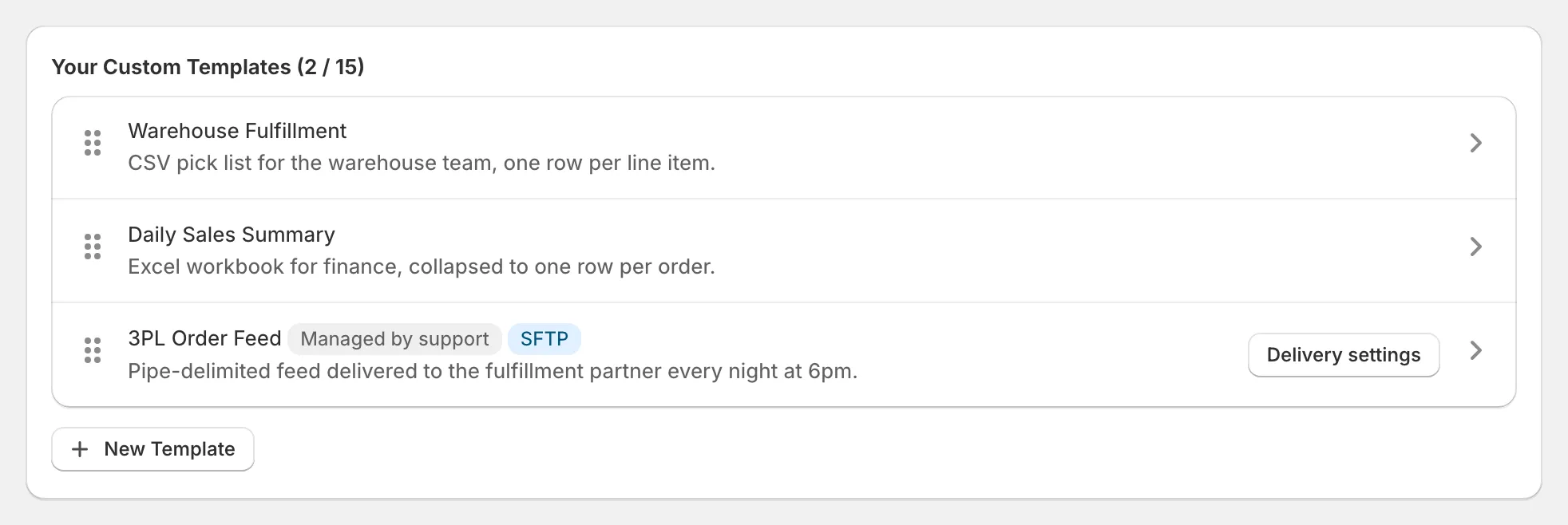
Basic includes two custom templates, Standard ten and Advanced fifteen; build one per destination, order them in Settings, copy an existing template to start a variant, and choose the template each time you export.
Different destinations often want different files: the warehouse wants a pipe-delimited feed, the accountant wants Excel, you want a quick CSV. Each is a template, and you pick the one you need when you export.
How many templates each plan includes
Section titled “How many templates each plan includes”| Plan | Custom templates you can build | Support-managed templates |
|---|---|---|
| Basic | 2 | Not included |
| Standard | 10 | Included |
| Advanced | 15 | Included |
Exportify’s pre-built templates do not count towards the limit. Your current usage shows at the top of the templates list in Settings.
Working with several templates
Section titled “Working with several templates”- Order them. Drag templates in the Settings list to set the order they appear in when you export; put the everyday one first.
- Copy instead of starting over. Open a template and use Copy to New Template to start a variant with the same columns.
- Name for the reader. “Warehouse feed (pipe)” and “Finance summary (Excel)” beat “Template 2”.
- Choose at export time. The New Order Export form lists your custom templates and the pre-built ones; the selection only affects that export.
Reaching the template limit
Section titled “Reaching the template limit”When you are at your plan’s limit the New Template button explains that. Either delete a template you no longer use, or upgrade under Your Exportify plan in Settings. Templates beyond the limit after a downgrade are kept but marked as needing an upgrade to run.