

Export line item properties and custom attributes
Exportify exports Shopify line item properties and order custom attributes as their own columns: refresh Detected Custom Fields in Settings, then add the detected fields to a template.
Shopify stores collect extra information in two places that the standard order export leaves out. Exportify can put both in their own columns.
- Line item properties are set per product in an order, usually by a customised theme or a product options app: engraving text, a chosen size or colour outside variants, a gift message for one item.
- Order custom attributes (also called note attributes or cart attributes) are set once per order, usually on the cart page: a pickup time, a delivery window, a purchase order number.
How Exportify detects custom fields
Section titled “How Exportify detects custom fields”Exportify scans your recent orders and lists every property and attribute name it finds under Detected Custom Fields in Settings. Those names then appear as fields in the template builder, in two categories: Detected Order Custom Attributes and Detected Line Item Custom Attributes.
-
Refresh the detected fields. In Settings, under Detected Custom Fields, click Refresh Detected Custom Fields. Do this after you add a new option to your store, so the new name is picked up.
-
Add them to a template. Open the template in the builder. Under Available Fields, open the detected categories and add the fields you want, or click Add missing detected fields to add every detected field that is not already in the template.
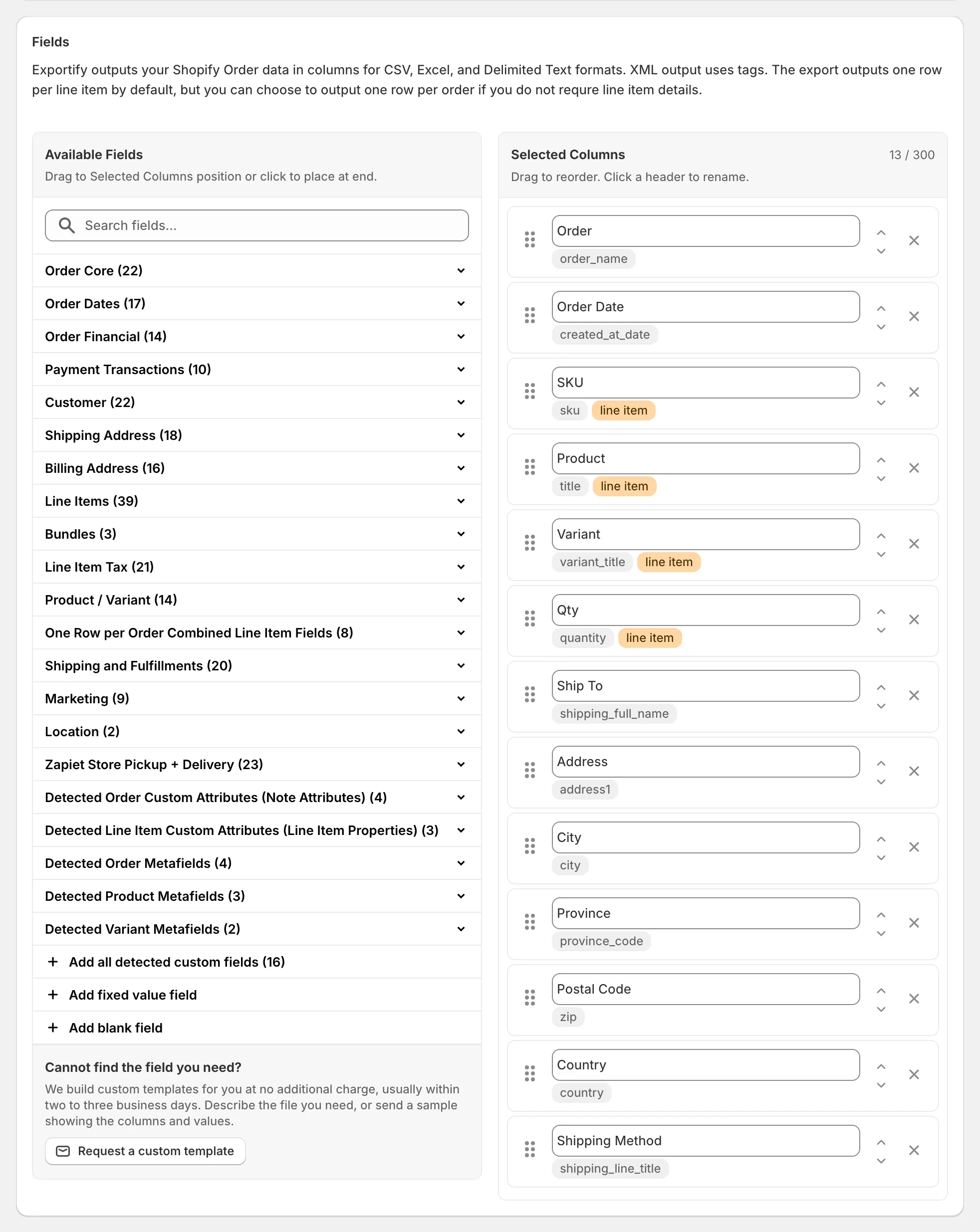
The Fields card with the detected custom field categories at the bottom of Available Fields -
Export. The values appear in their own columns. Line item properties change per line; order attributes repeat on every line of the order.
Good to know about custom fields
Section titled “Good to know about custom fields”- Names beginning with an underscore (for example
_internal_ref) are hidden by Shopify in its own export and Exportify treats them the same way. - Some product-options apps store their values as line item properties and are picked up automatically. Zapiet Store Pickup + Delivery has its own article: Zapiet.
- If a name changes in your theme or app, refresh the detected fields and add the new name; the old column stays until you remove it.