

Scheduled exports
A scheduled export produces one file covering a time window on a regular schedule and uploads it to your SFTP or FTP server; support configures the schedule on a template, and the template’s Delivery settings page shows when the last upload succeeded or why it failed.
A scheduled export produces one file covering a time window on a regular schedule, for example every day at 06:00 covering the previous day’s orders, and uploads it to your SFTP or FTP server. Support sets the schedule up on a template for you; this article explains what to expect and how to check that it is running.
How to set up a scheduled export
Section titled “How to set up a scheduled export”Contact support@exportifyapp.com with:
- which template to use (or describe the layout you need and we will build one)
- how often and at what time the export should run, and in which time zone
- which orders each run should cover (for example “orders from the previous calendar day”, or a window ending at a fixed cut-off time)
- the SFTP or FTP server to deliver to (see Deliver exports to your SFTP or FTP server)
Support configures the schedule and delivery on the template. Templates managed by support show a Managed by support badge in Settings.
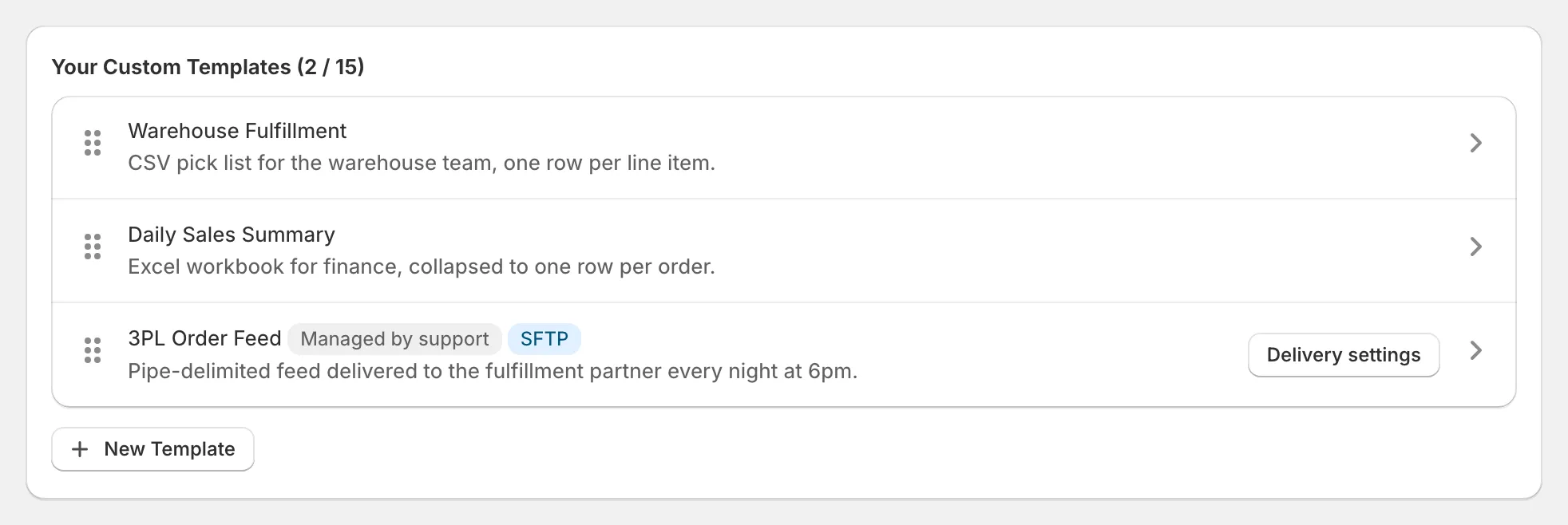
How to check that a scheduled export ran
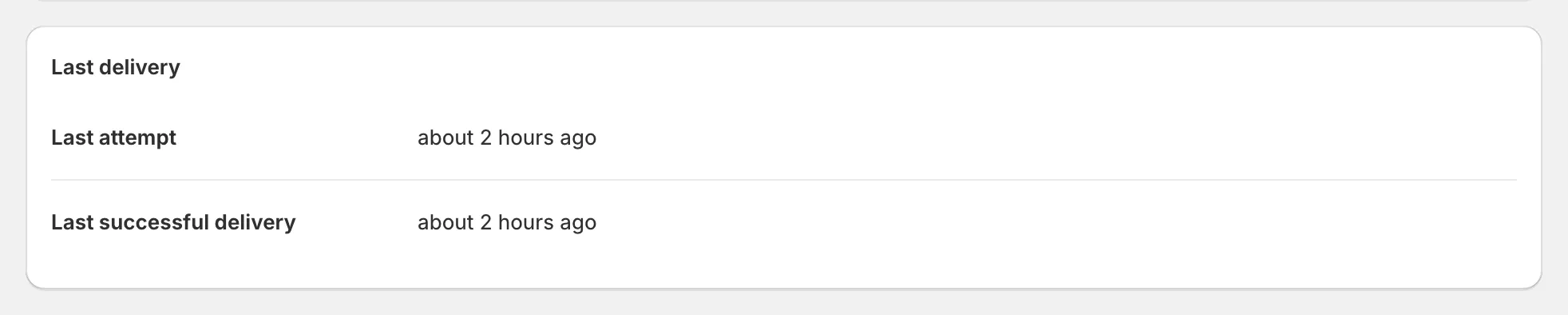
Section titled “How to check that a scheduled export ran”Open the template in Settings, then Delivery settings. After the first run, the Last delivery card shows when the last upload was attempted and when an upload last succeeded.
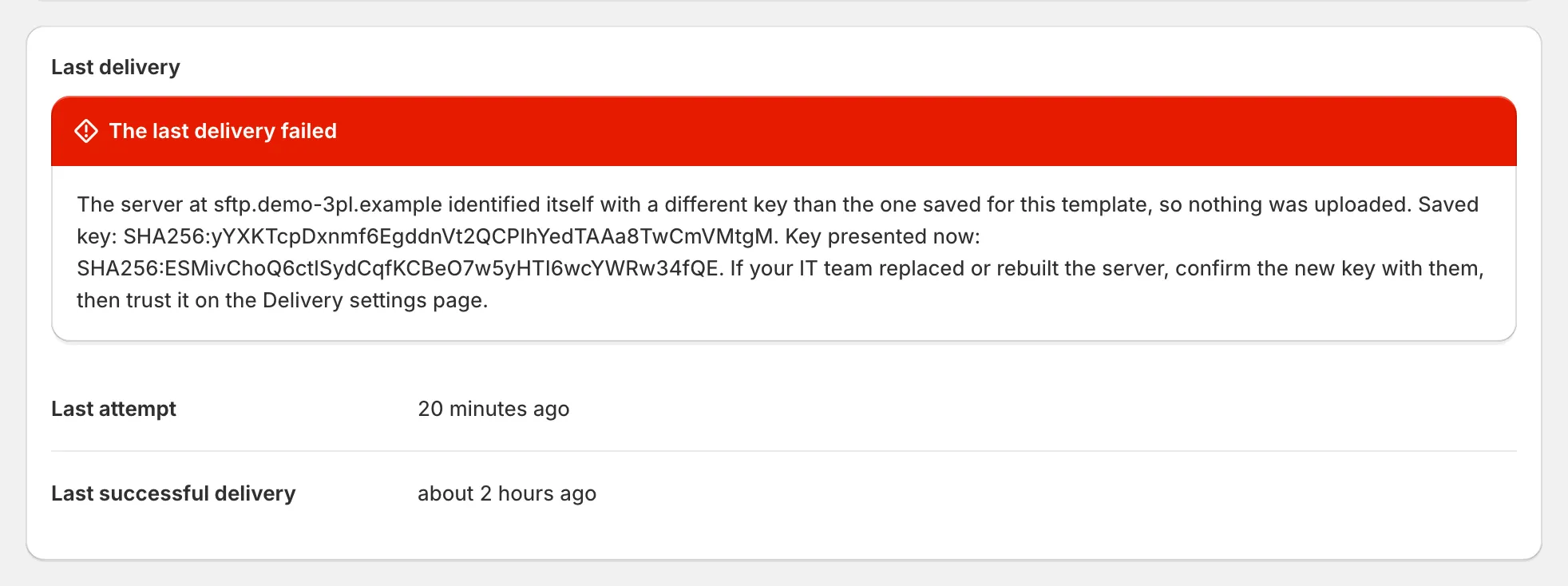
If the last upload failed, the card says so and gives the reason, so you or your IT team can correct it and then use Test connection on the same page.
Scheduled runs are not listed under Recent exports, which shows the exports you start yourself.
You can also ask Sidekick in your Shopify admin, for example “Did my scheduled Exportify export run today?”. It checks the recent scheduled runs for you and explains any failure.
Days with no orders
Section titled “Days with no orders”If no orders match the window, the run still completes and a file containing only the header row is uploaded (an empty file, for templates configured without a header row), so the receiving system sees that the run happened.
How to change a schedule
Section titled “How to change a schedule”Contact support with the change. Time-of-day changes, a different window or a different destination folder are all quick to apply.