

Export Shopify Bundles
Shopify records only a bundle’s component products on an order, so exports show component rows; add Bundle SKU, Bundle Title and Bundle Quantity from the Bundles section of the template builder to show which bundle each line belongs to, or ask support for a template that rolls each bundle up to a single row.
Stores selling with Shopify Bundles often expect an exported order to show the bundle the customer bought. Shopify records it differently: the order carries the products inside the bundle, and the bundle itself is not a line item. Exportify can show both sides, and this article explains how.
How Shopify records a bundle on an order
Section titled “How Shopify records a bundle on an order”When a customer buys a bundle built with Shopify’s own Bundles app, the order stores one line item per component product, each with its own SKU, price and quantity. The bundle appears only as a grouping that links those components together. That is why Shopify’s built-in order export, and any export tool reading the same data, shows component rows rather than a single bundle row.
This is usually the right data for fulfilment (the warehouse picks the components), but it leaves two common needs unmet: knowing which bundle a component row belongs to, and reporting where a bundle should count as one product.
Show the bundle on each component row
Section titled “Show the bundle on each component row”Three fields in the template builder carry the parent bundle’s identity on every component line item:
- Bundle SKU: the SKU of the bundle product the line belongs to
- Bundle Title: the bundle product’s name
- Bundle Quantity: how many of that bundle the customer ordered
-
Open the template builder. In Exportify’s Settings, open the custom template you want to change, or create one. See Create a custom template.
-
Add the bundle fields. In the field list, open the Bundles section and add Bundle SKU, Bundle Title and Bundle Quantity. Rename the column headers if your receiving system expects different names.
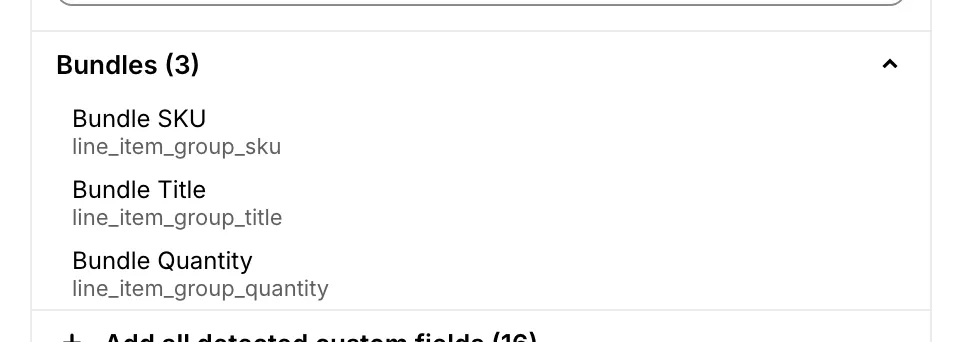
The Bundles section of the template builder field list with Bundle SKU, Bundle Title and Bundle Quantity -
Save and export. Rows for bundle components fill the new columns; rows for products sold on their own leave them empty.
One row per bundle instead of component rows
Section titled “One row per bundle instead of component rows”For sales reporting, a bundle often needs to count as one product: one
row with the bundle’s name, SKU, the quantity ordered and what the
customer actually paid, instead of a row per component. That layout needs
business rules (which rows to collapse and how to total the revenue), so
it is set up by support as a
support-managed template.
Email support@exportifyapp.com with
your store’s .myshopify.com address and a sample of the layout you
need. A variant with a bundle header row above the component rows is also
available.
Bundle questions
Section titled “Bundle questions”Why does my export show the products inside the bundle instead of the bundle? Shopify stores orders that way: components are line items, the bundle is not. Add the Bundle SKU and Bundle Title columns to see the bundle on each component row, or ask support for a roll-up template that collapses each bundle to a single row.
Why is the Bundle SKU column empty? Either the row is not part of a bundle (the columns only fill for bundle components), or the bundle product has no SKU saved on it in Shopify, or the bundle came from a third-party bundle app rather than Shopify Bundles.
Do these fields work with third-party bundle apps? No. Bundle SKU, Bundle Title and Bundle Quantity read Shopify’s own bundle grouping, which only Shopify Bundles writes. Third-party bundle apps usually record their bundle details as line item properties, which export as their own columns; see Product options and customisation apps, and contact support if you are not sure what your bundle app saves.
I do not see a Bundles section in the template builder. A small number of long-standing stores still run on Exportify’s legacy order data path, which cannot fill these columns. Contact support and we will move your store over; the switch is quick and changes nothing else about your exports.